Learn how to record supplier communications using Call Logs, add important updates through Notes, and document termination reasons for assessments to maintain proper tracking and audit history.
Overview
The Assessment Tracking module provides features to document communication and key decisions throughout the assessment lifecycle:
- Call Logs help track interactions with suppliers
- Notes capture general comments and observations
- Termination Reasons are recorded as notes when an assessment is terminated
These features ensure better visibility, collaboration, and audit tracking across teams.
Call Log
Purpose
The Call Log feature allows users to record communication (calls) with suppliers during the assessment process.
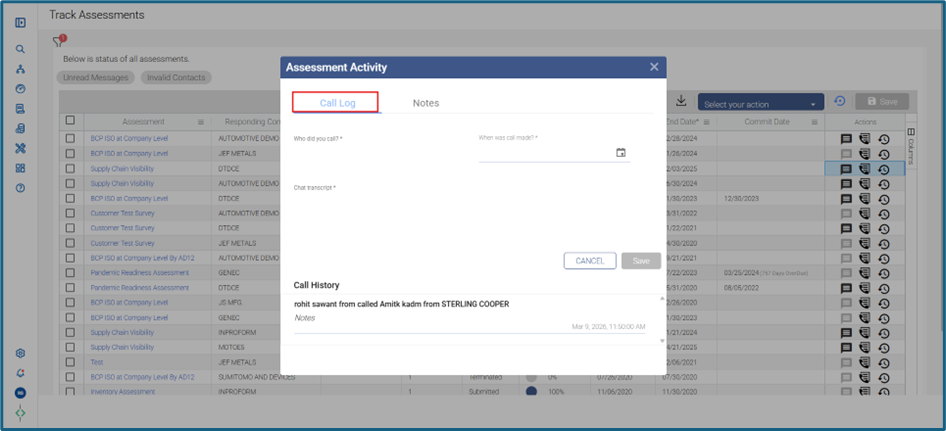
Steps to Log a Call
- Navigate to the Track Assessment page
- Locate the required assessment
- Click on the Assessment Activity from Actions menu
- Select "Call Log"
- In the dialog box, provide the following details:
- Who did you call? → Select the supplier contact
- When was the call made? → Select date and time (future dates are not allowed)
- Chat transcript → Enter call notes (up to 500 characters)
- Click Save
Viewing Call History
- All logged calls are available in the Call History section
- Each entry includes:
- Contact details
- Call transcript
- Date and time of the call
- Call history is visible to both customer and supplier organizations
Best Practices for Call Logs
- Log calls immediately after they occur
- Capture key discussion points and action items
- Use clear and professional language
Notes Section
Purpose
The Notes section allows users to add general comments, observations, and important updates related to an assessment.
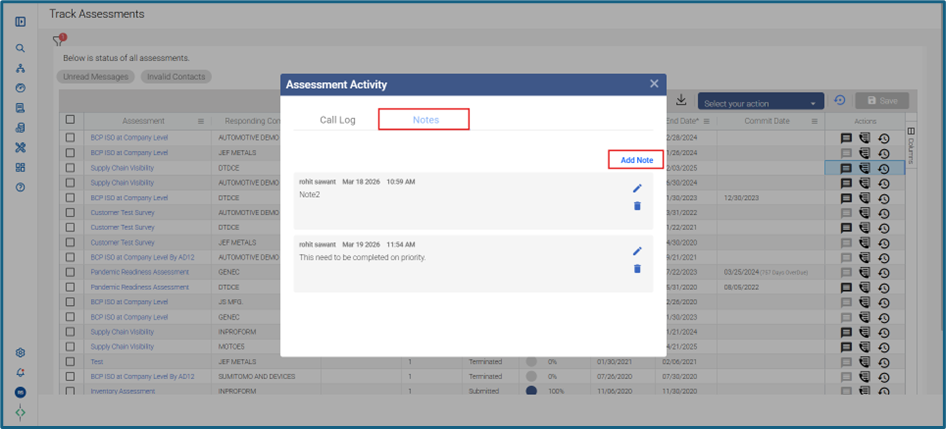
Steps to Add a Note
- Navigate to the Assessment Details page
- Locate the Notes from Assessment Activity section
- Click Add Note
- Enter the note details
- Click Save
Key Features
- Displays author name and timestamp
- Users can edit or delete only their own notes
- Notes are sorted with the latest first
- Notes are visible to all users with access
Termination Reason for Assessments
Purpose
When terminating an assessment, users can provide a reason, which is automatically recorded in the Notes section for tracking and audit purposes.
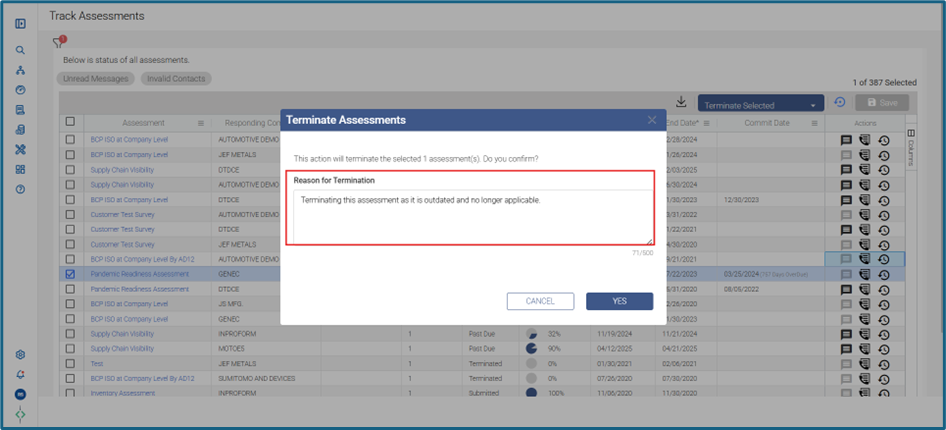
Steps to Add a Termination Reason
- Select the required assessment(s)
- Click on Terminate
- Enter the Reason for Termination
- Click Yes
Behaviour
- The termination reason is automatically saved as a Note
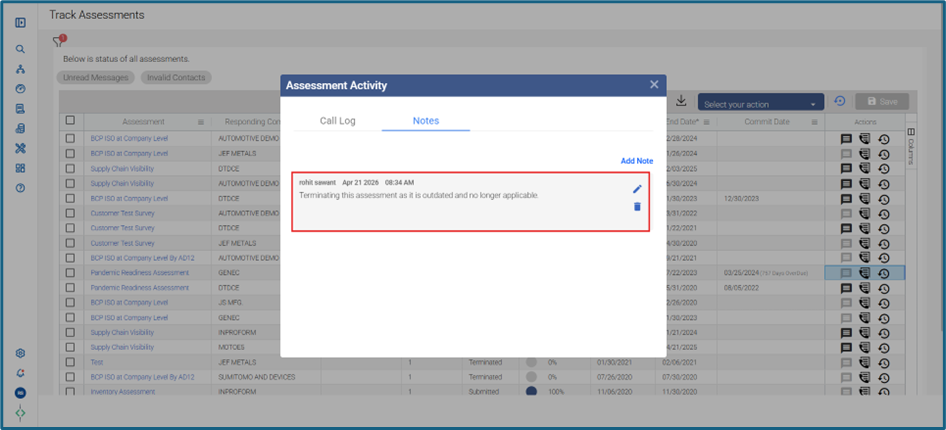
- The note includes user name and timestamp
- This ensures proper audit tracking and visibility
Bulk Termination
- Multiple assessments can be selected and terminated together
- A single termination reason can be applied
- The same note is added to all selected assessments
Viewing Termination Reasons
- Available in the Notes section of the assessment
- Helps users understand why the assessment was terminated
Best Practices
- Be Specific: Add meaningful and relevant details
- Be Timely: Record logs and notes promptly
- Be Professional: Maintain clear and professional communication
- Document Decisions: Always include termination reasons
- Review History: Check existing logs before contacting suppliers
Was this article helpful?
That’s Great!
Thank you for your feedback
Sorry! We couldn't be helpful
Thank you for your feedback
Feedback sent
We appreciate your effort and will try to fix the article