- Multi-Factor Authentication (MFA) is a security enhancement introduced on the Resilinc platform to better protect user accounts from unauthorized access. It requires users to complete an additional verification step—beyond the standard username and password—by entering a one-time code sent to their registered email address.
- This feature is available for both Customer and Supplier portals and applies to:
- Web Login page
- Mobile app Login Page
- Registration Page
- Event Response Page (for suppliers)
Note: SSO (Single Sign-On) users are exempt from this requirement.
- How it works:
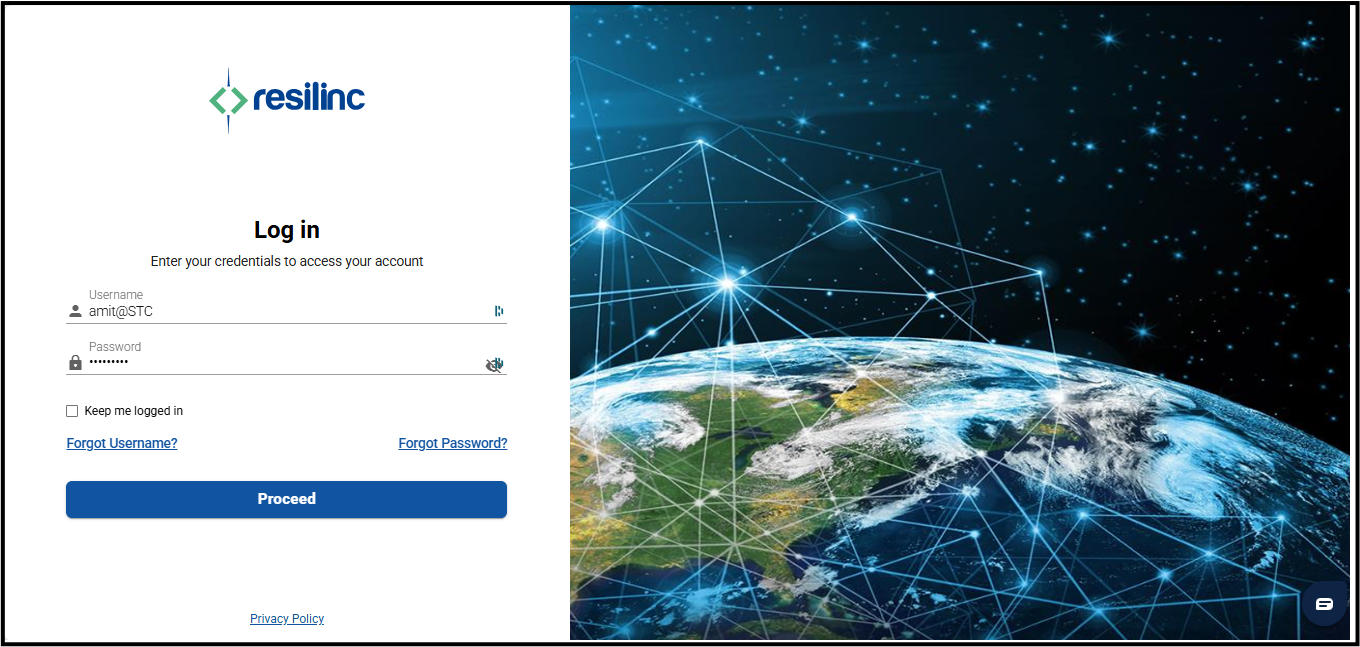
1. Web Login Process:
- After entering your username and password, click 'Proceed'.
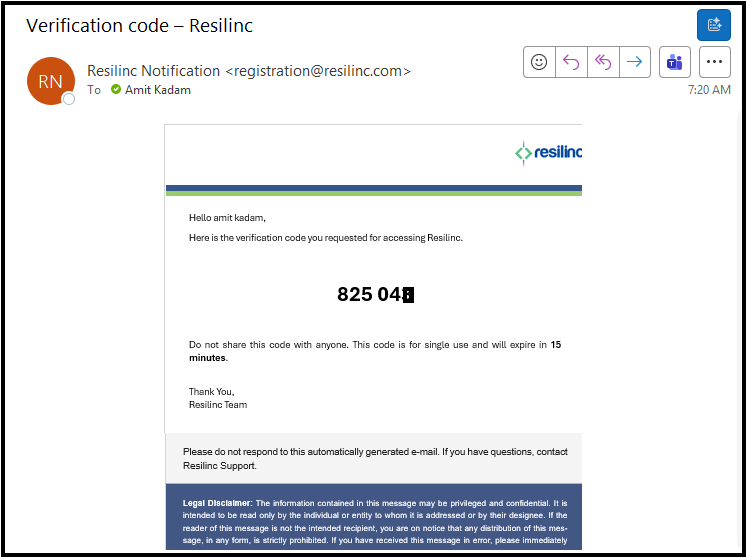
- A verification code is sent to your registered email address.
- Enter the code and click 'Validate & Log in'.
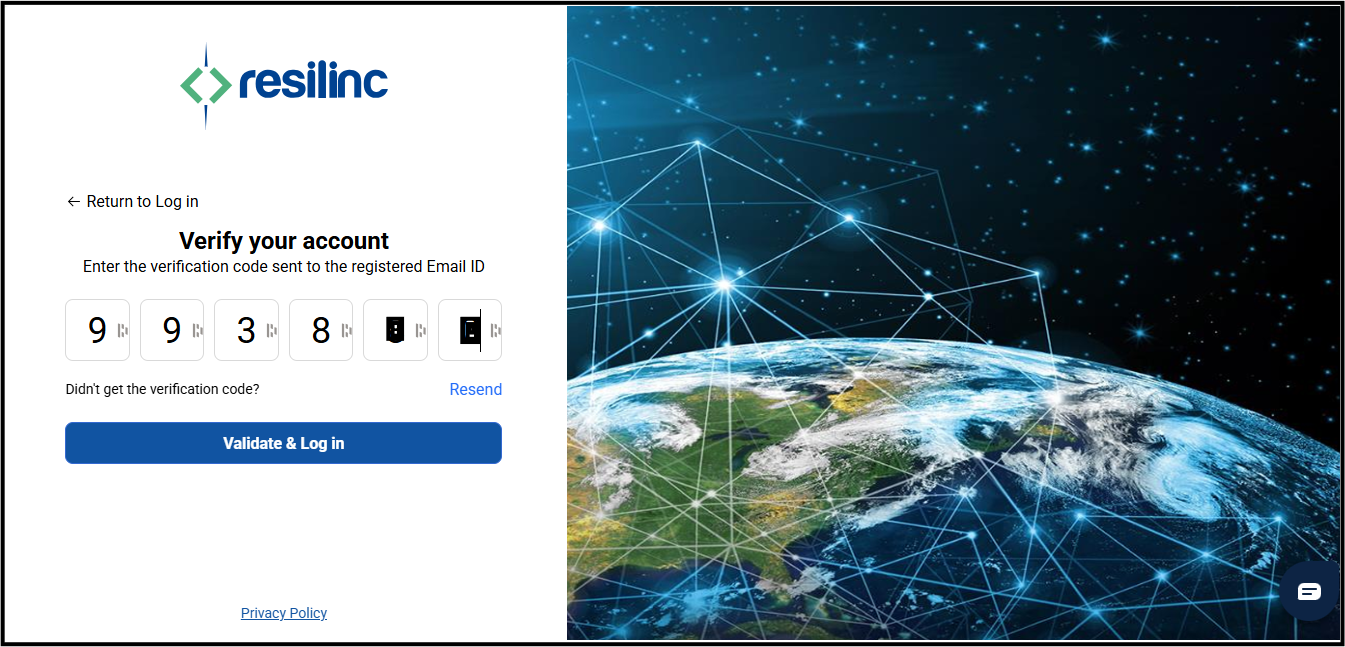
- Enter the code and click 'Validate & Log in'.
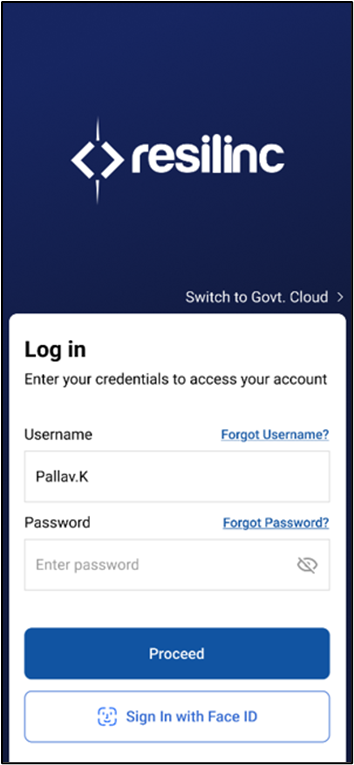
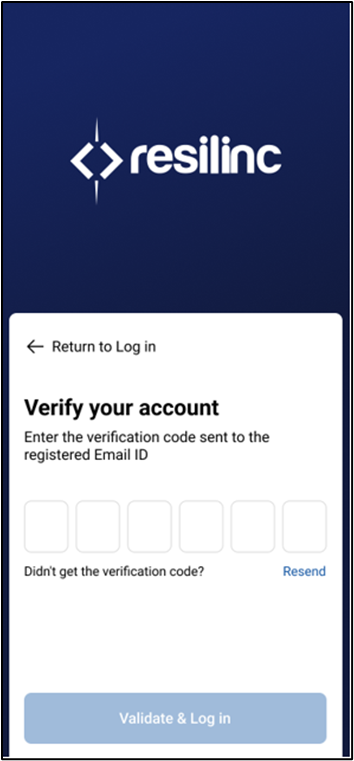
2. Mobile app Login Process:
- After entering your username and password, click 'Proceed'.
-
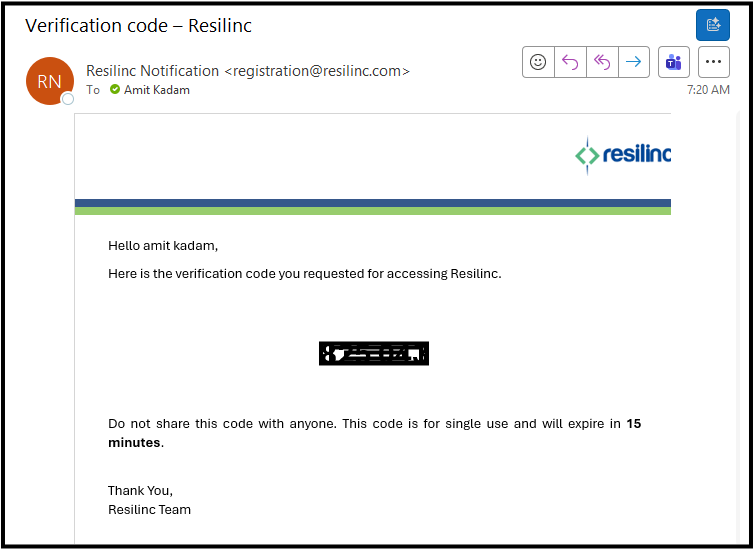
- A verification code is sent to your registered email address.
- Enter the code and click 'Validate & Log in'.
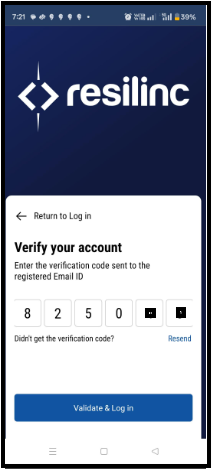
- A verification code is sent to your registered email address.
3. Registration Process:
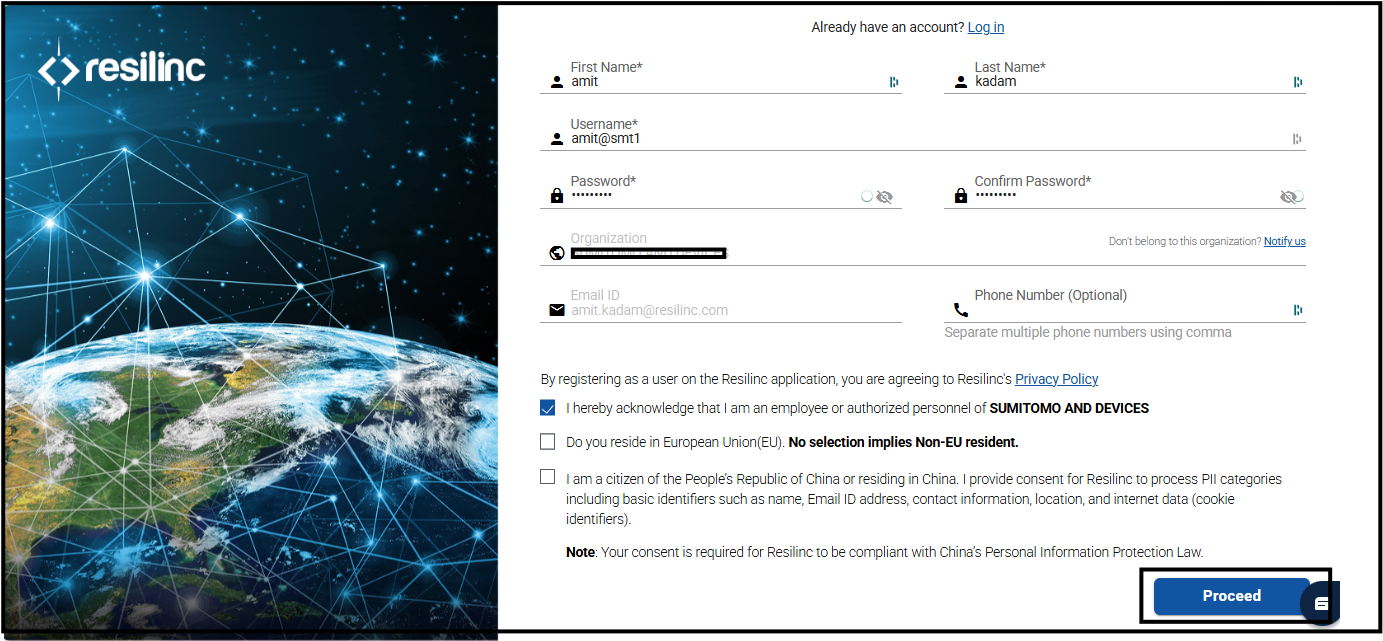
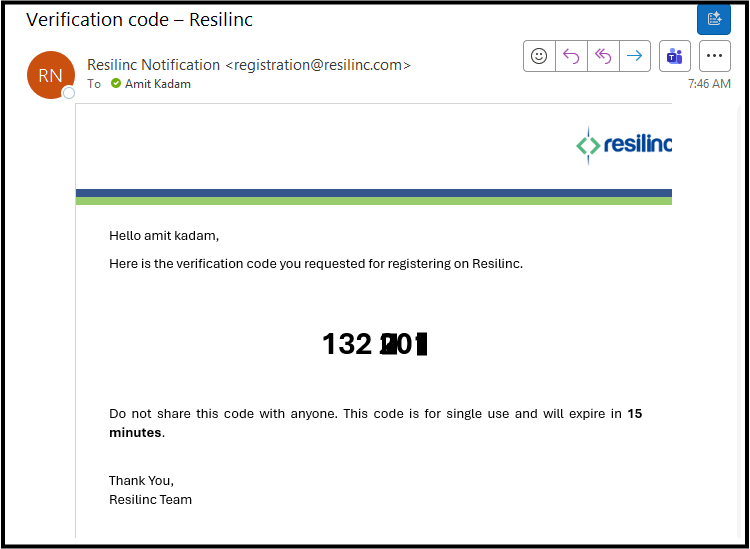
- Once you fill out all the details on registration page and clicks on proceed, a verification code is sent to your email.
-
- Enter the code and click 'Validate & Register' to complete the process.
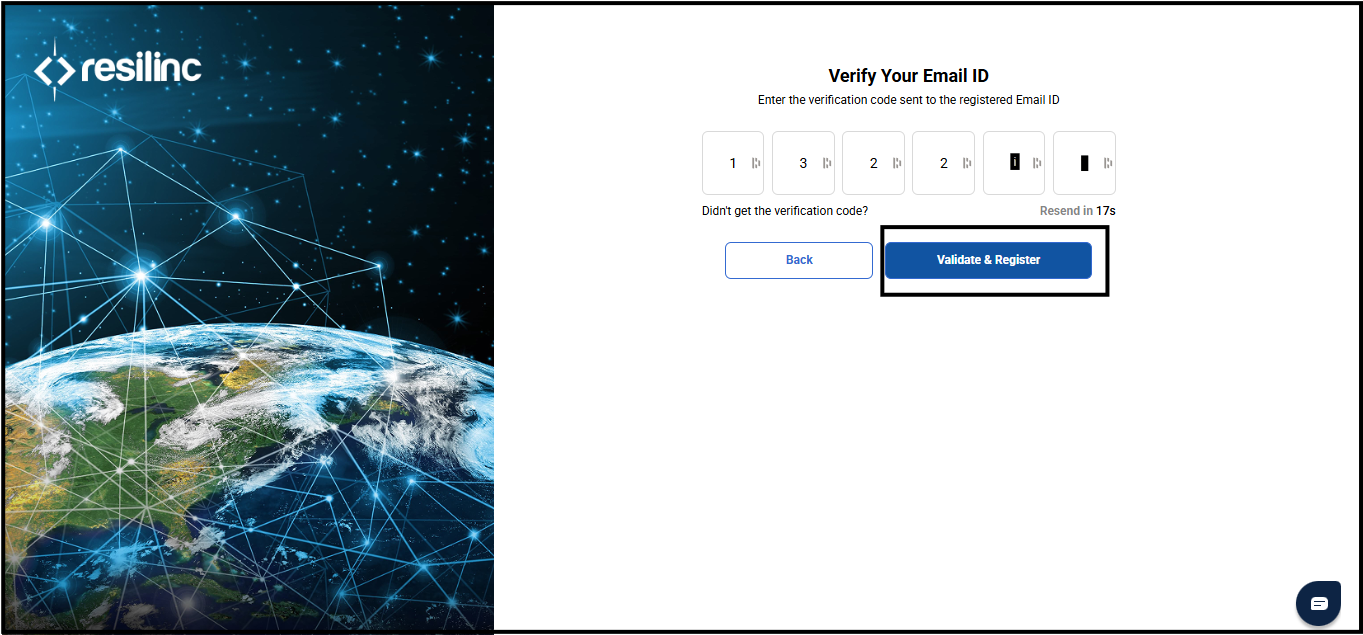
- Enter the code and click 'Validate & Register' to complete the process.
4. Event Response (Suppliers Only)
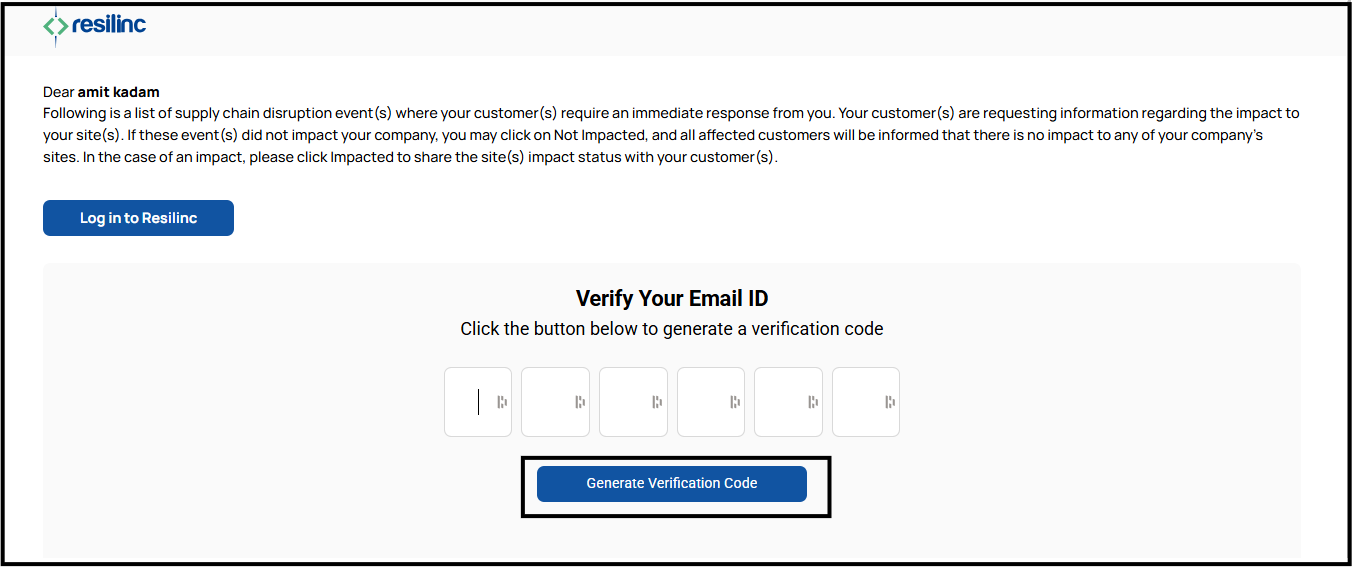
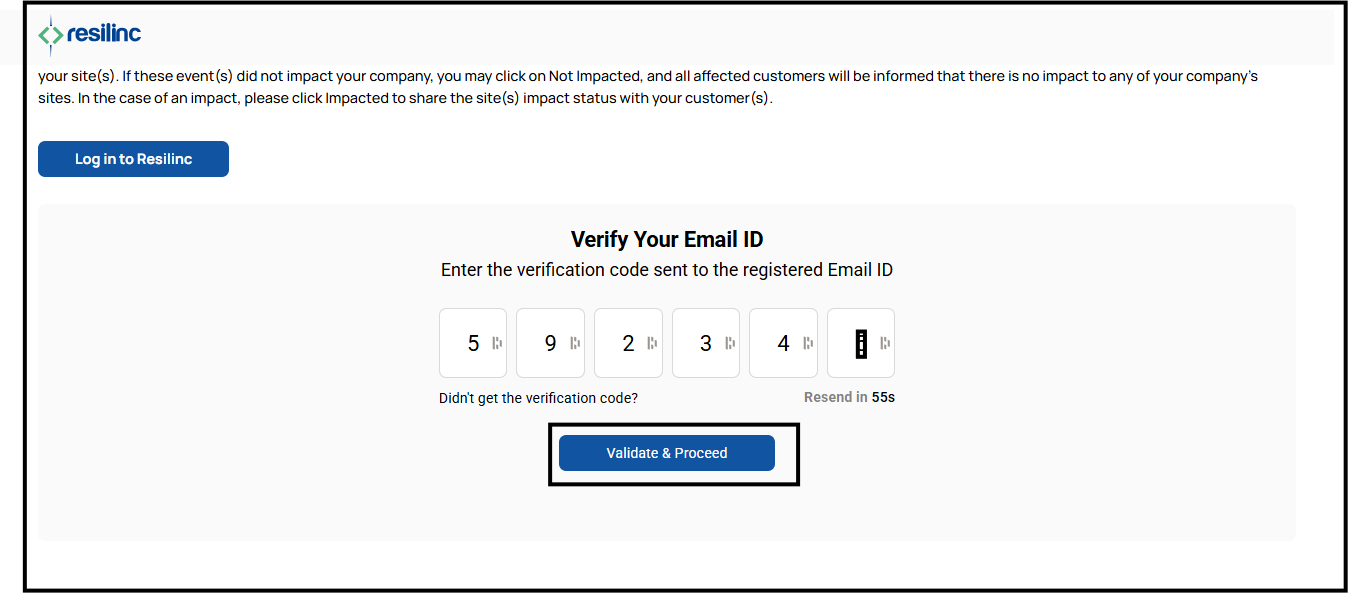
- After receiving the supplier impact notification email, when a supplier user clicks on the event response link, they are directed to the screen below. From there, they need to click on the “Generate Verification Code” button to receive a code on their registered email address.
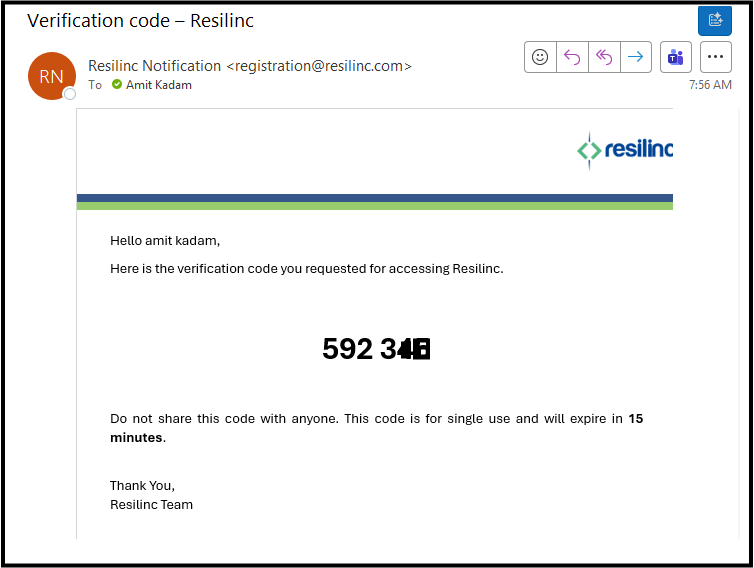
- Enter the code and click 'Validate & Proceed' to confirm the response.
- MFA Configuration Options
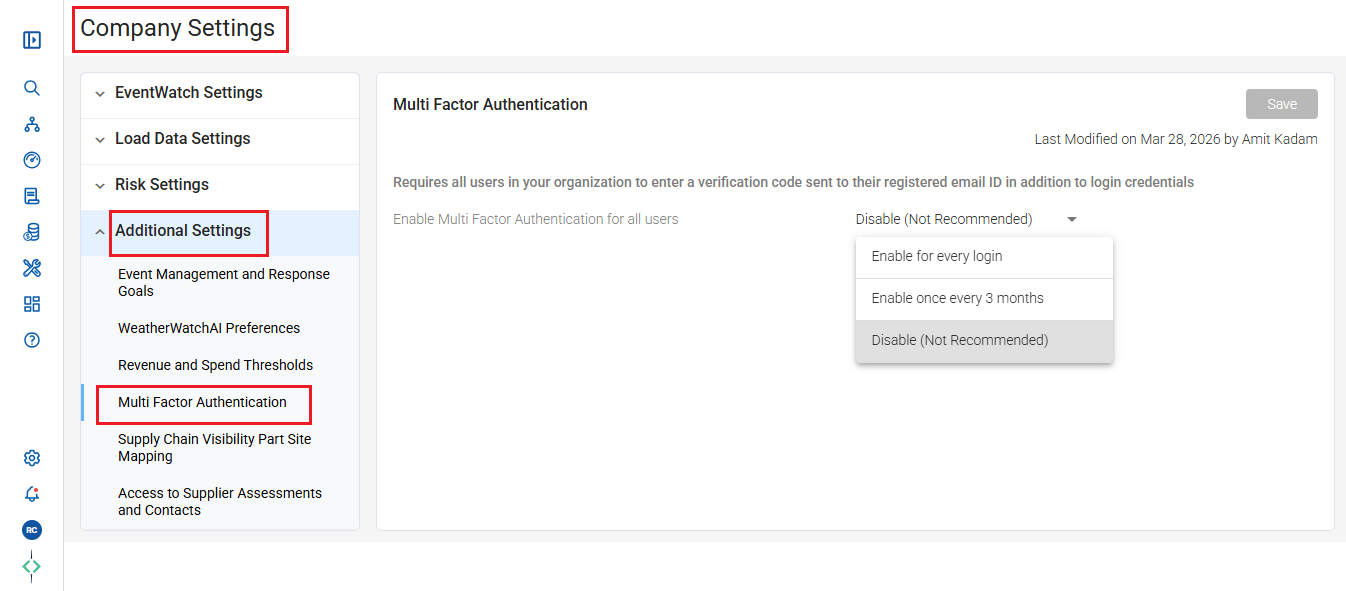
- On the customer portal, only Company Admin can access and configure the MFA settings. This setting can be configured from:
Left Hamburger Menu → Admin → Organization Settings -> Additional Settings -> Multi Factor Authentication
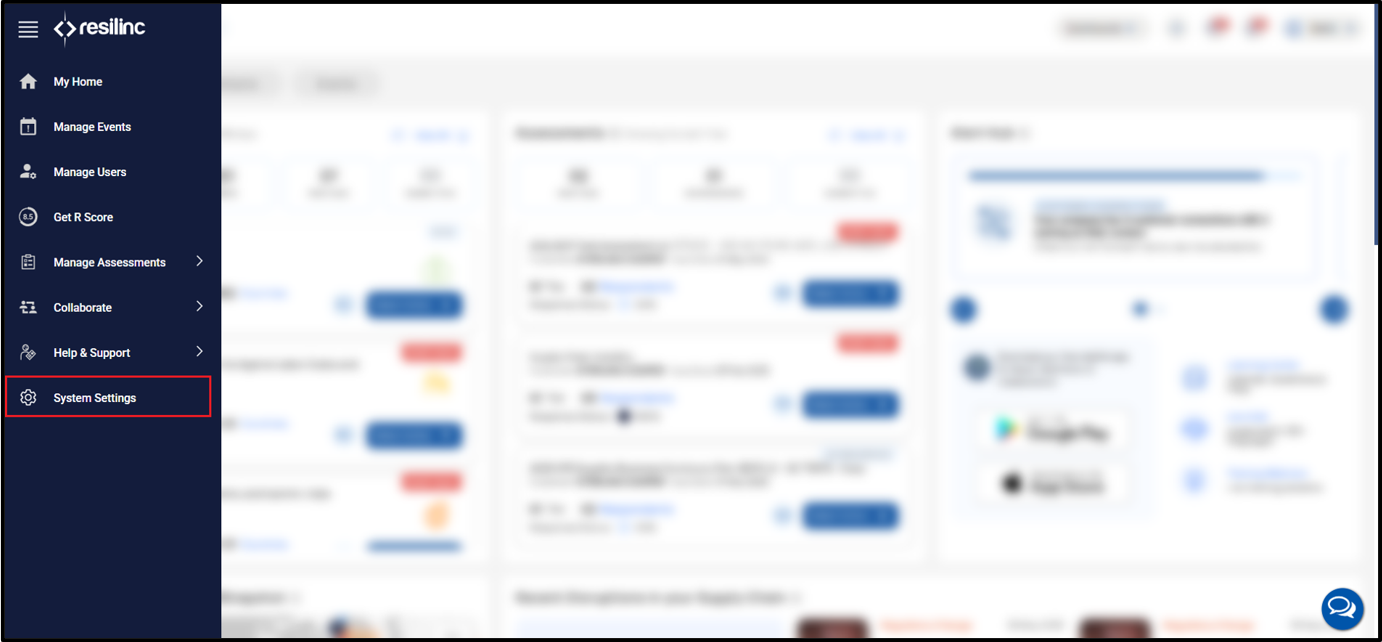
- On the supplier portal, only user with Crisis Manager role can access and configure the MFA settings. This setting can be configured from:
Supplier Portal → System Settings
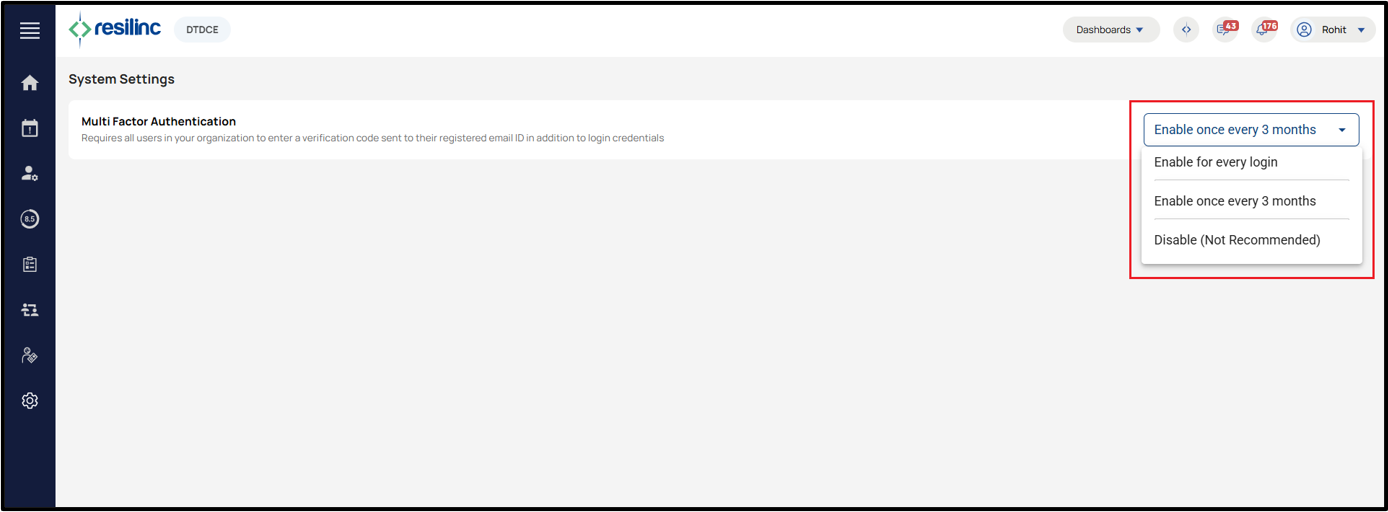
- Admins can choose from:
- Every Login – Code is required each time you log in.
- Once Every 3 Months (Default) – Code is required once per quarter.
- Disabled – MFA is turned off (not recommended).
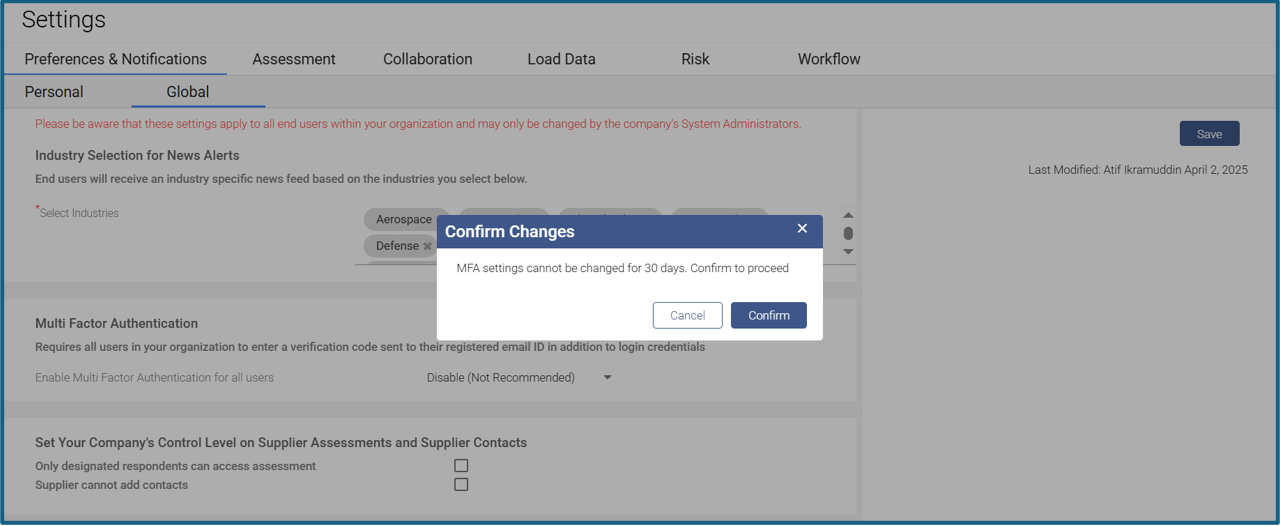
- Default MFA setting is set to Once Every 3 Months. However, whenever admin user tries to change this setting, the setting would be freeze for next one month and when he selects a different option and clicks on Save button, he gets a popup saying “MFA settings cannot be changed for 30 days. Confirm to proceed”.
- Admins can choose from:
Was this article helpful?
That’s Great!
Thank you for your feedback
Sorry! We couldn't be helpful
Thank you for your feedback
Feedback sent
We appreciate your effort and will try to fix the article