- You can enable the language selection dropdown by configuring translations within the assessment template. Once multiple languages are enabled and saved, suppliers will automatically be able to choose their preferred language while taking the assessment.
To enable language selection, follow the steps below:
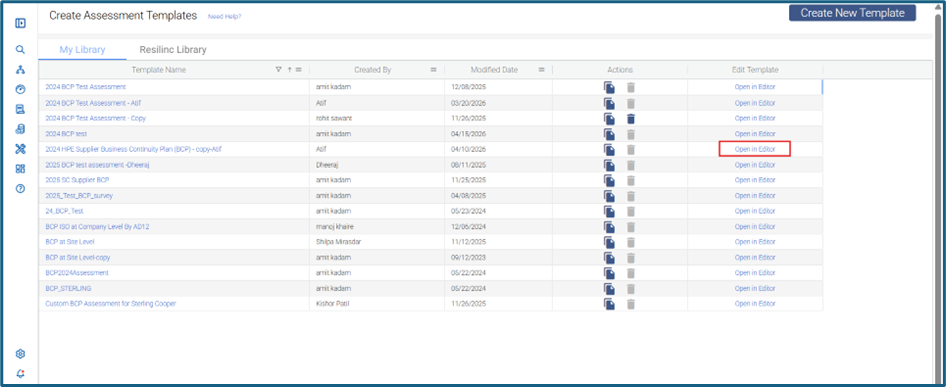
- Open the required assessment template and click Open in Editor.
- Navigate to the Translate Assessments tab available at the top of the editor.
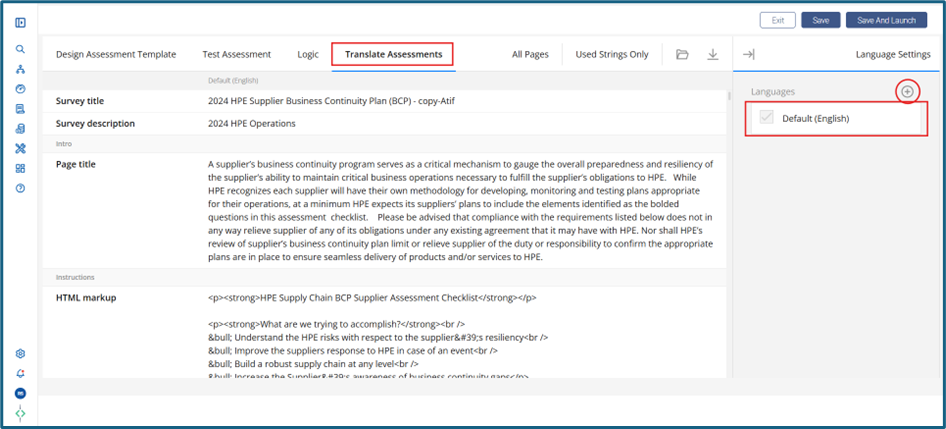
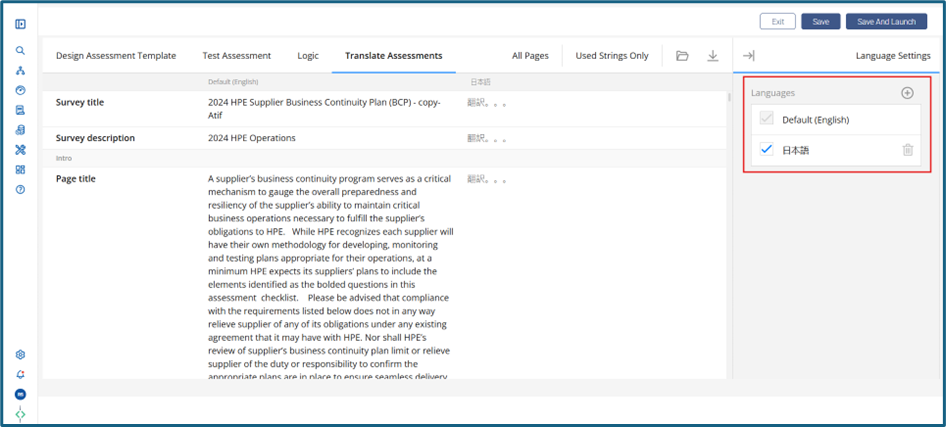
- English is selected by default. Choose the additional language(s) you want to enable (for example, Japanese).
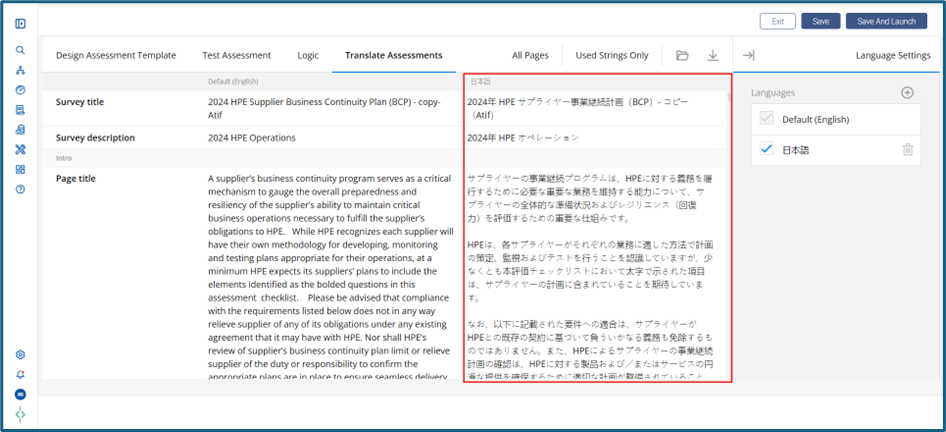
- Translate all assessment content, including questions, sections, and instructions, into the selected language.
- Save the assessment template.
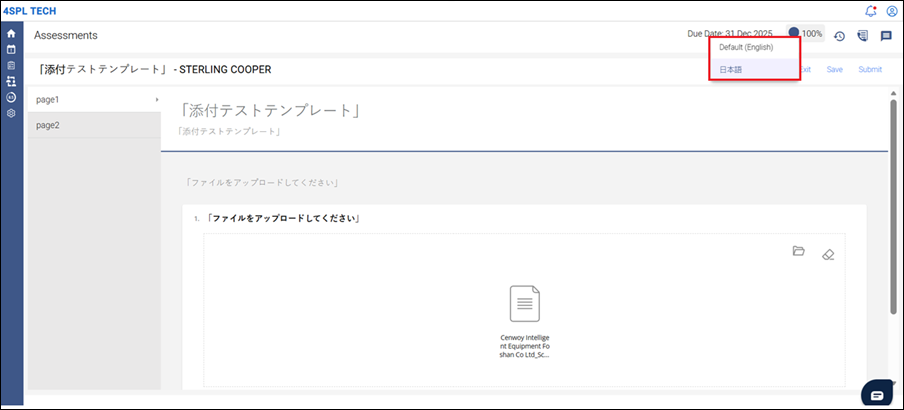
- After the assessment is launched, suppliers will see a language selection dropdown at the top of the assessment page and can switch between the enabled languages as needed.
Was this article helpful?
That’s Great!
Thank you for your feedback
Sorry! We couldn't be helpful
Thank you for your feedback
Feedback sent
We appreciate your effort and will try to fix the article