Recovering a Forgotten Username
If you have forgotten your username, click the "Forgot Username?" link on the Resilinc login page.
Steps:
- Navigate to the Resilinc login page.
- Click "Forgot Username?"
- Enter your registered email address.
- Complete the CAPTCHA verification.
- Submit the request.
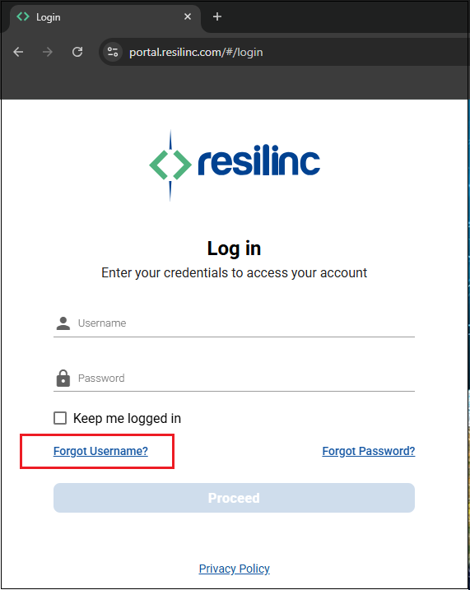
The system will send your username to the registered email address on file.
Important Notes:
- Username recovery emails are sent from Registration@resilinc.com with the subject line "Your Resilinc Account Username."
- Username recovery works only if the email address is registered in the Resilinc system.
- CAPTCHA values are case-sensitive and must be entered exactly as displayed.
Resetting a Forgotten Password
If you know your username but have forgotten your password, click the "Forgot Password?" link on the Resilinc login page.
Steps:
- Navigate to the Resilinc login page.
- Click "Forgot Password?"
- Enter your username.
- Complete the CAPTCHA verification.
- Click "Next."
If the username is valid, a password reset email will be sent to the registered email address.
Important Notes:
- Password reset emails are sent from Registration@resilinc.com with the subject line "Reset your Resilinc Password."
- CAPTCHA values are case-sensitive.
- Users must enter the exact username created during registration/onboarding.
- Many users mistakenly enter their email address instead of their username. If the username entered does not match the Resilinc record, the password reset email will not be delivered.
- If you are unsure of your username, use the "Forgot Username?" option first.
Verifying User Roles and License Assignments (Admin Users Only)
Users with Admin permissions can verify and manage user roles, license assignments, and product access within the Resilinc portal.
Steps:
- Log in to the Resilinc portal using an account with Admin access.
- Open the left-hand hamburger menu.
- Navigate to:
Admin → User Management - Search for the required user.
- Review or update:
- Assigned Roles
- License Assignments
- Product Access Permissions
Important Notes:
- License visibility and assignment management are available only to users with appropriate Admin permissions.
- If required licenses, products, or agents are not visible, contact Resilinc Customer Support for further assistance.

Was this article helpful?
That’s Great!
Thank you for your feedback
Sorry! We couldn't be helpful
Thank you for your feedback
Feedback sent
We appreciate your effort and will try to fix the article