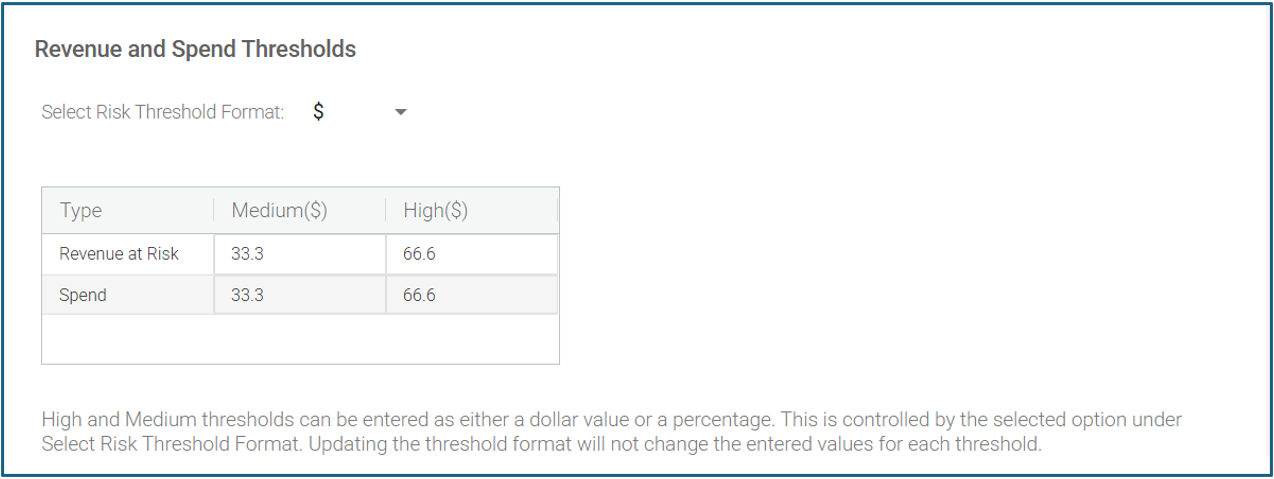
What is the “Revenue and Spend Thresholds” setting in Global Settings?

Created by Amit Kadam, Modified on Wed, 27 Aug at 12:36 PM by Amit Kadam

  • The Revenue and Spend Thresholds setting allows admin users to define what levels of Revenue at Risk and Spend are considered Low, Medium, or High. These thresholds control color coding in dashboards, making it easier to identify critical risks at a glance.


  • How does it work?
    • Admins can set Medium and High thresholds for both Revenue and Spend.
    • Values can be entered in percentages or dollar amounts, using the dropdown selector.
    • The Low threshold is auto-calculated as the remaining value (100% - Medium - High).
  • Default Values:
    • Format: Percentage
    • Medium: 33.3
    • High: 66.6

These defaults can be modified to suit your organization’s needs.

  • Validation Rules:
    • Medium threshold must be lower than High.
    • Total of Medium + High should not exceed 100% (if using percentage format).
    • If invalid values are entered, the system resets to default and shows an error message.
  • Example (Percentage Format)
    • If:
      • Medium threshold = 33.3%
      • High threshold = 66.6%
    • Then:
      • Any supplier with Spend ≤ 33.3% is marked Green (Low)
      • 33.4% – 66.6% is Yellow (Medium)
      • >66.6% is Red (High)
  • Where is it used?
    • The defined thresholds impact color coding and filters across multiple tabs in the Analyze Risk dashboard (e.g., Suppliers, Sites, Products). This helps prioritize suppliers based on financial exposure.

Was this article helpful?

That’s Great!

Thank you for your feedback

Sorry! We couldn't be helpful

Thank you for your feedback

Let us know how can we improve this article!

Select at least one of the reasons
CAPTCHA verification is required.

Feedback sent

We appreciate your effort and will try to fix the article