- This behaviour typically occurs when the “Store file content in JSON result as text” option is enabled for File Upload questions in the assessment template.
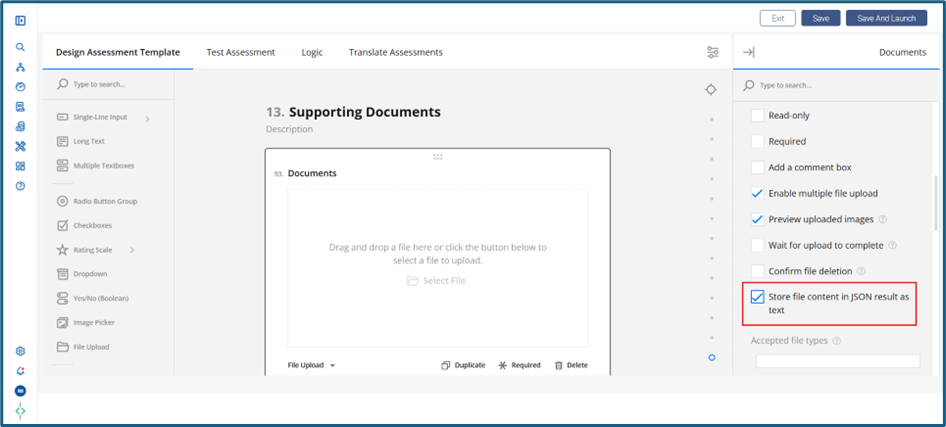
- When this option is selected, the full content of uploaded files is stored directly in the JSON response. This can impact how assessment responses are processed and displayed, resulting in issues such as:
- Previously submitted answers appearing during response review
- Mismatch between completion percentage during submission and review
- Green progress indicators with unfavourable or outdated answers
- Uploaded attachments not appearing in the review screen
- How to Resolve the Issue
- To prevent these issues, update the assessment template as follows:
- Open the assessment template in Edit mode from the Create Assessment page.
- Locate each File Upload question in the template.
- In the General section of the question settings, uncheck the option
“Store file content in JSON result as text.” - Save the assessment template.
- After saving the changes, re-access the assessment from the supplier portal, upload the required files, and submit the assessment again. The attachments should display correctly, and the completion percentage and scoring will be calculated accurately.
- Additional Notes:
- This setting is enabled by default when a File Upload question is added.
- The change must be applied to each File Upload question in the assessment.
Was this article helpful?
That’s Great!
Thank you for your feedback
Sorry! We couldn't be helpful
Thank you for your feedback
Feedback sent
We appreciate your effort and will try to fix the article