- WarRooms can be filtered by using a User Defined Attribute (UDA) to limit visibility to suppliers and sites with mapped parts.
- To help address this, you can configure your view to display only WarRooms that have parts impacted by using a User Defined Attribute (UDA). The steps are outlined below:
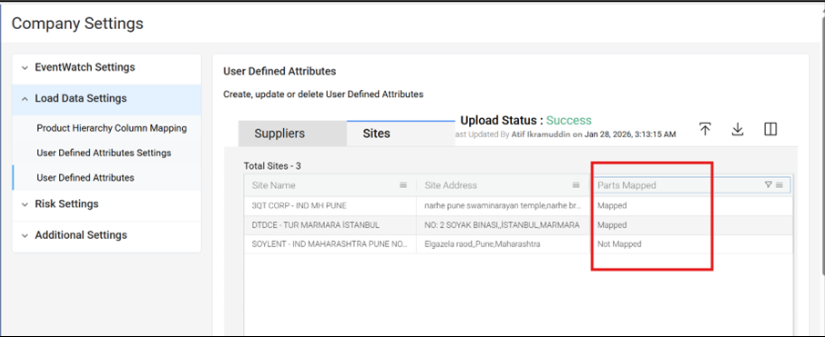
- Export the existing UDA file and add a new column named “Parts Mapped.”
- Mark sites that have parts mapped as “Mapped,” and mark sites without mapped parts as “Not Mapped.” (You can refer to the Site Dashboard – Old Dashboard for selecting Mapped and Not Mapped part sites.)
- Import the updated UDA file back into the system.
- In User Preferences, configure the UDA setting to display records where Parts Mapped = Mapped. Sample screenshot shown below:
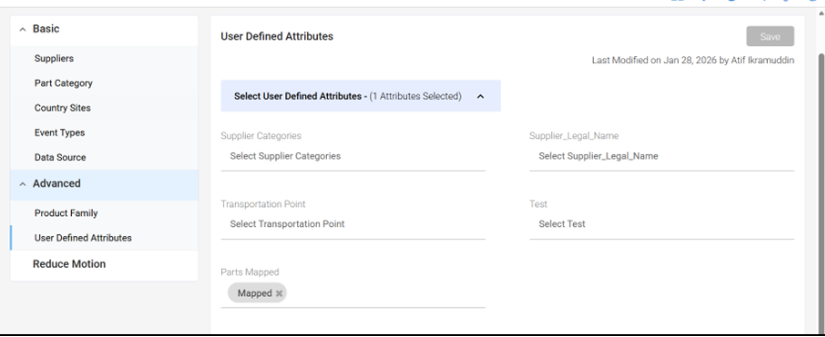
- Log out and log back into the portal to ensure the preference is applied.
- Navigate to the WarRoom Orion page and apply the UDA filter for Parts Mapped = Mapped.
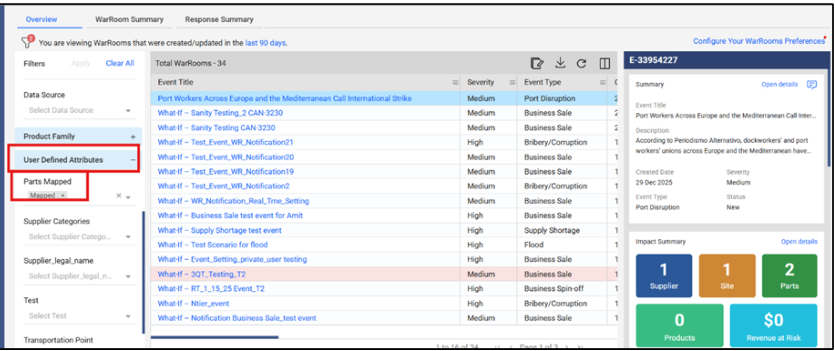
- Once this configuration is applied, only WarRooms associated with impacted parts will be displayed, effectively excluding WarRooms with zero part impact.
- Please note that when this UDA preference is enabled, the same filtering will apply across the platform, including Supplier Orion, Site, Parts, Country, and Category views. Only suppliers and sites with impacted parts will be visible.
- This approach should significantly reduce noise and help you focus on the most relevant WarRooms.
Was this article helpful?
That’s Great!
Thank you for your feedback
Sorry! We couldn't be helpful
Thank you for your feedback
Feedback sent
We appreciate your effort and will try to fix the article