- Navigate to Workflow Center via Menu > Action Center > Workflows > Workflow Center
- As described in article How can user access Workflow center? (https://resilinc.freshdesk.com/a/solutions/articles/159000408728?portalId=159000092793).
- As described in article How can user access Workflow center? (https://resilinc.freshdesk.com/a/solutions/articles/159000408728?portalId=159000092793).
- Or by clicking on ‘Initiate Workflow’ button in the Supplier Detail, Part Detail, Site Detail, or WarRoom Detail (pictured below) page

- Now select the mandatory items noted below:
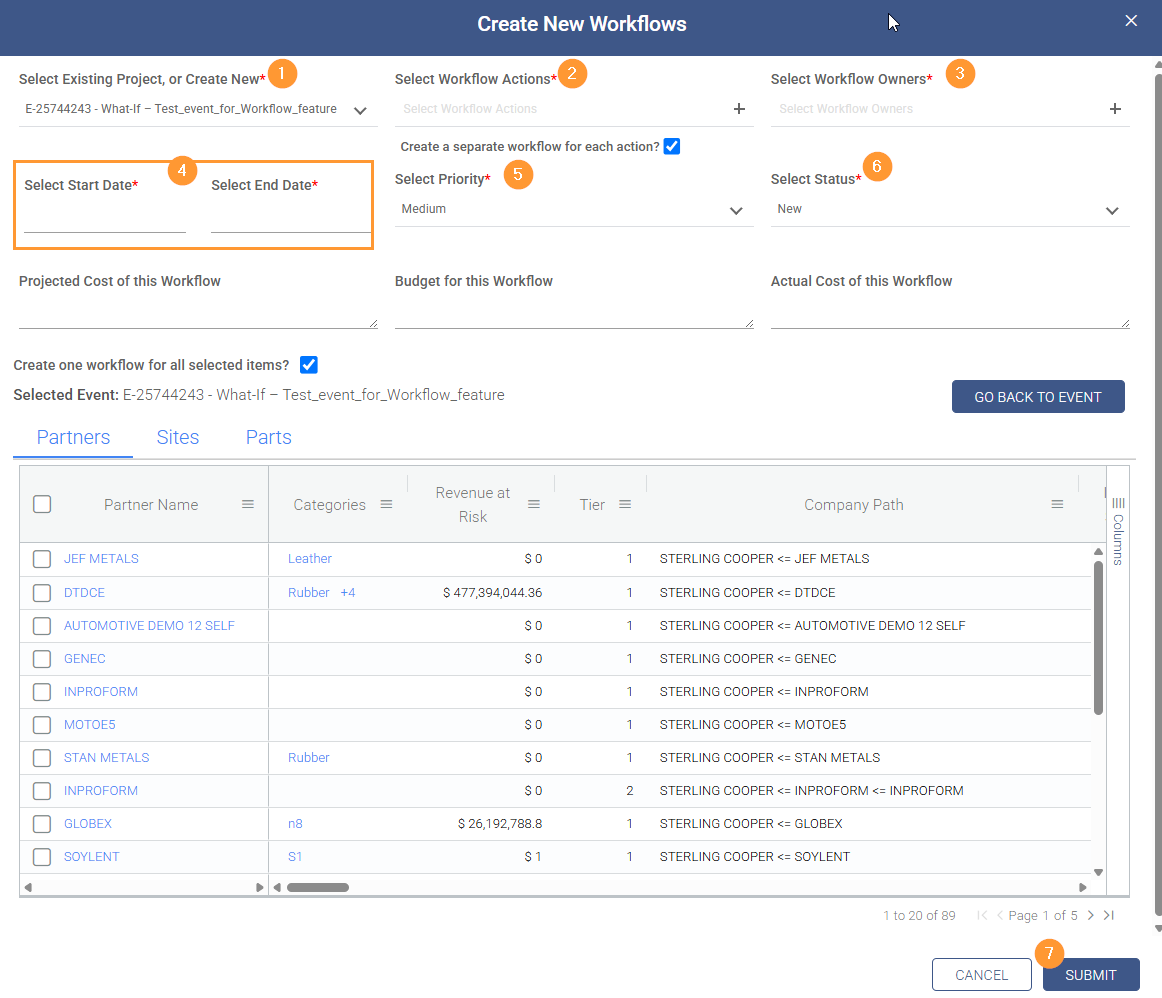
- If you opened from a Detail page, this will already be filled out; otherwise select the appropriate project or create a new one.
- Create a new one by typing a new project name and clicking the + button.
- Select Workflow Actions – the actions you want to execute to mitigate this risk or problem, e.g. Find Alternate Source (for given parts/supplier), Increase Inventory, etc.
- You can click a bolded name (called a Playbook) to add all the actions indented beneath it.
- You can also create a new action by, again, typing it and clicking the + button.
- You can also create playbooks in advance in a different menu, see What is the use of Manage Playbooks section? (https://resilinc.freshdesk.com/a/solutions/articles/159000408729?portalId=159000092793)
- Select the Workflow Owner(s) who will be responsible for ensuring the actions are completed.
- The Workflow Owner will receive the notifications for each action and the Workflow as a whole.
- Select start and end dates for this workflow’s execution.
- Select the priority of this workflow’s execution.
- Select the appropriate status
- For new workflows, chances are the default (‘New’) is appropriate, but if your team has already started the work before you have created the workflow, you could instead start with ‘Mitigating’ or ‘In Progress’
- Click Submit to create the Workflow if you do not have any need for the optional items:
- Optional items (which can be updated after Workflow creation) include:
- Projected cost of this Workflow
- Budget for this Workflow
- Actual cost of this Workflow
- Any other specifics related to the project, such as specific partners, sites, or parts.
- Optional items (which can be updated after Workflow creation) include:
- If you opened from a Detail page, this will already be filled out; otherwise select the appropriate project or create a new one.
Was this article helpful?
That’s Great!
Thank you for your feedback
Sorry! We couldn't be helpful
Thank you for your feedback
Feedback sent
We appreciate your effort and will try to fix the article