Once the UDAs are uploaded, these custom attributes can be viewed & leveraged in the ‘Filter’ criteria of key dashboards and user preferences settings – where the applicable supplier and site data show...!
Some instances have been listed below on how the uploaded UDAs can be used by any super/end user for configuring and customizing their user preferences and notifications.
1. Supplier dashboard
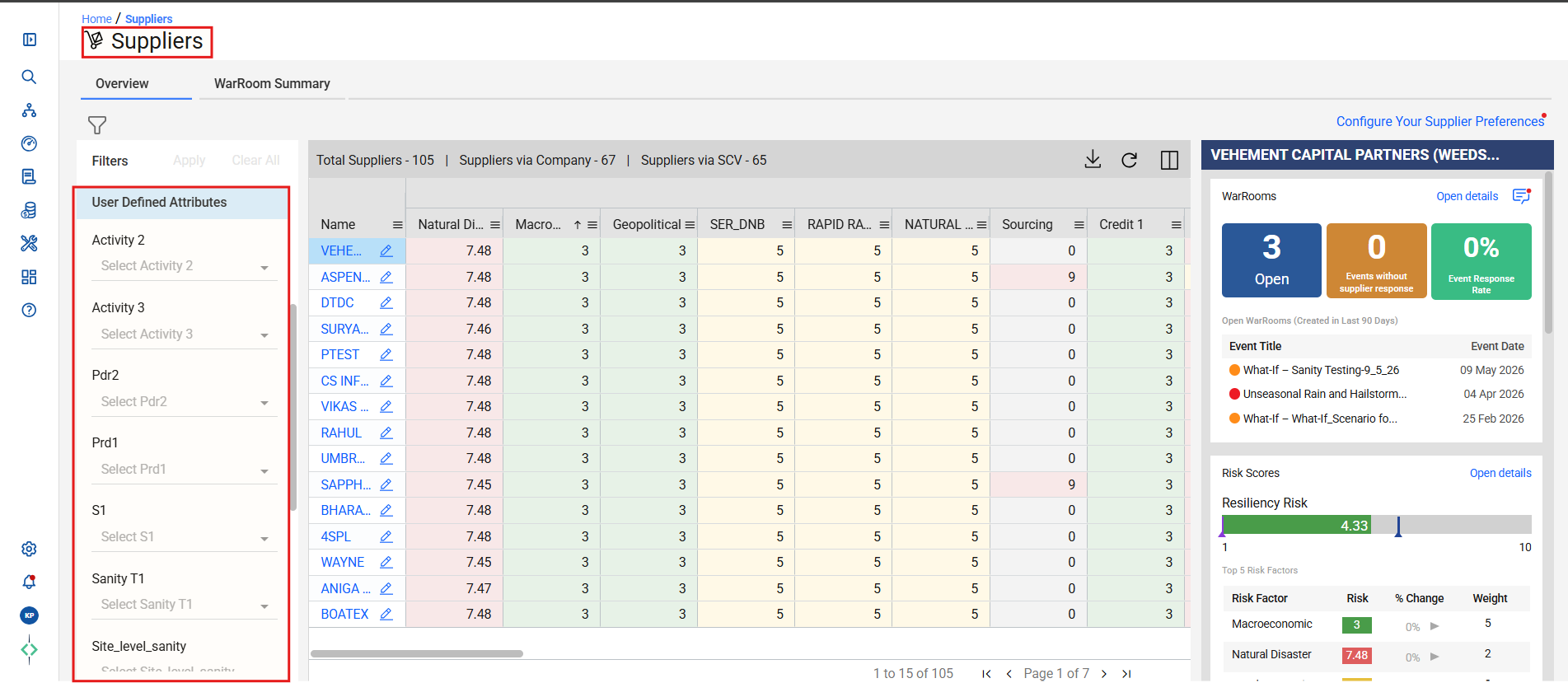
- On the Supplier dashboard (or any other standard dashboards) a set of “User Defined Attributes” filter can be viewed. These options are visible under the “Filter” section.
- You will then be able to see all the uploaded UDAs by its specific labels created while uploading them. Every user based on their preference, roles or assigned responsibilities can select UDA’s applicable to them, from each dropdown. This will help users to view relevant and actionable information for them, instead of viewing everything that may not be important to them. This ensures user saves time in finding information they need and help retaining users interest in the portal.
- In the above example, the total number of suppliers in the portal are 105. All the suppliers may not be relevant for every user from different departments or categories. In such situations, users can select their preference by using the UDA filters to view just selective information. In below example with the help of ‘Region’ filter the supplier data has been reduced from 105 suppliers down to 10 relevant suppliers.
2. Preferences and Notifications – EventWatch:
- One of the key features of UDA’s is to create a user specific experience so they receive EventWatch notifications only for their respective suppliers, sites, or as per the user’s role & responsibilities.
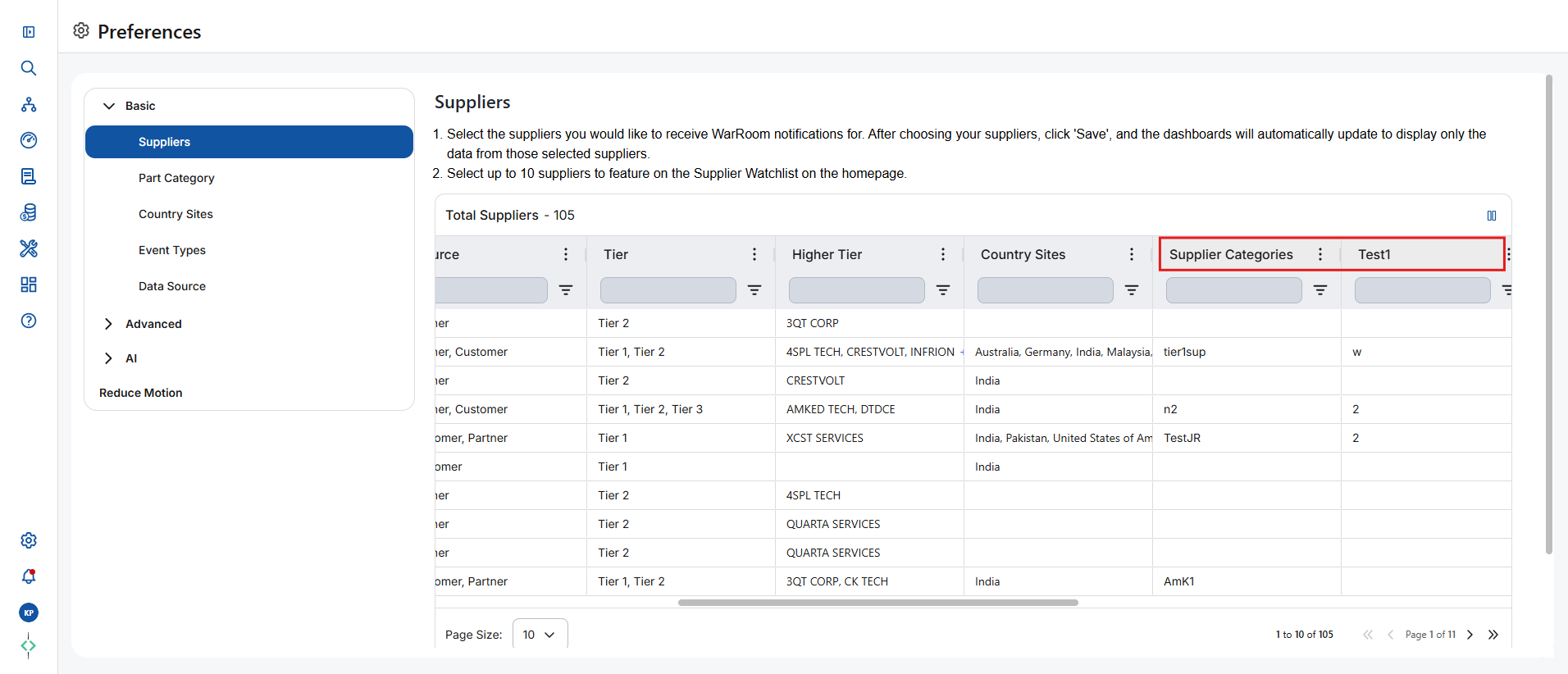
- The UDAs uploaded in the system are visible in “Preferences and Notifications” settings, which allow users to configure their ‘Personal settings’.
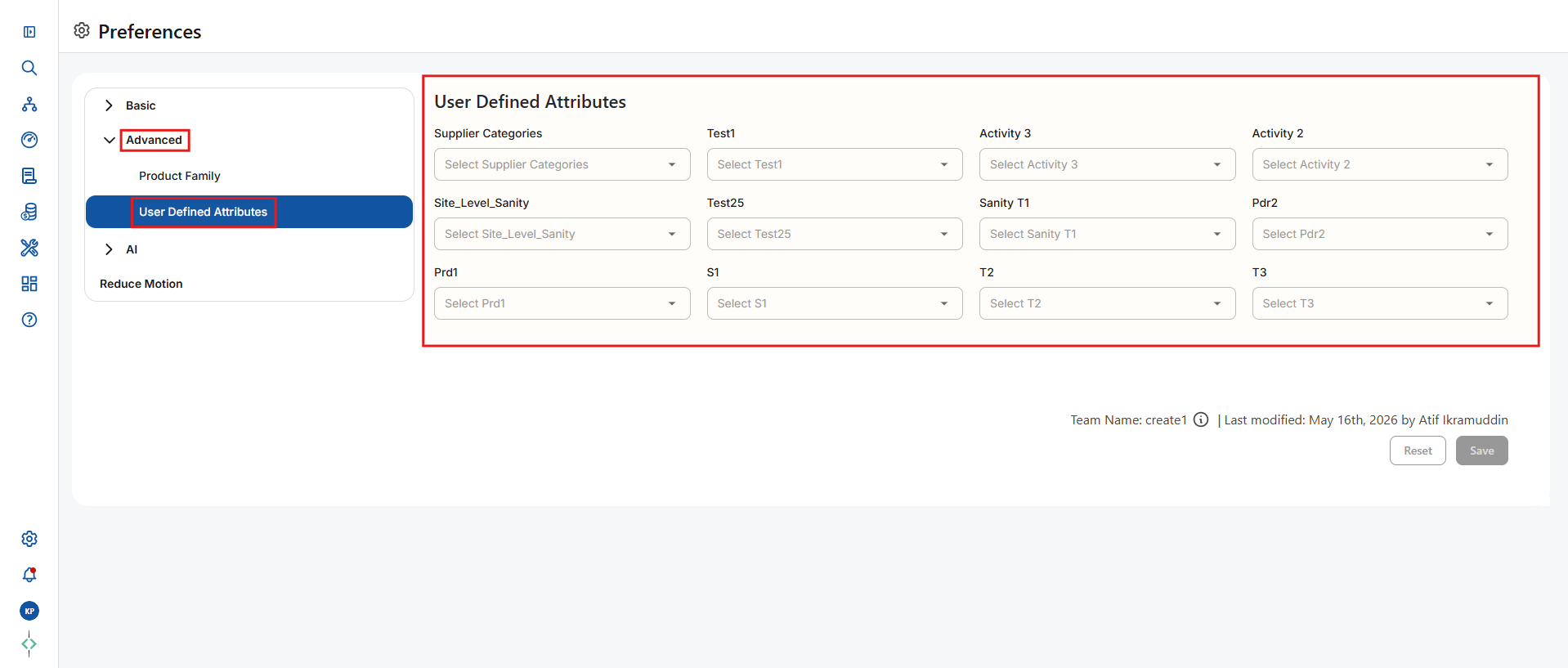
- UDA’s can also be visible in the “Advanced Configuration” section of the user settings. Unlike, the UDA’s available in the supplier selection grid where users must do multiple selection to define accurate supplier or site criteria, selecting UDAs in the Advanced Configuration setting can easily set their exact user preferences for notifications & data classification in the portal.
3. Warroom Experience:
- Based on the user selection, the Warroom notifications as well as the information in the Warroom gets filtered for the user. E.g., a Warroom notified to a user without any UDA selection or preference, may have a complete list of potentially impacted suppliers, in such case the user will have to filter the data in the warroom to view relevant suppliers or sites. The user will also get notified for all the suppliers loaded in the portal for monitoring and all the notifications received by the user may not always be relevant to them. On the other hands, a user with appropriate UDA selection, will only get notified if suppliers or sites they have selected is found to be impacted. Further the Warroom experience will also be pre-filtered to show just the relevant suppliers, sites and data associated to the user preferences.
- Once applied, these filters / user preferences are saved by the Resilinc system so the user doesn’t have to apply the filters again the next time they login to the same dashboard. The user will see information relevant to them unless they choose a different criterion or remove filters.
Was this article helpful?
That’s Great!
Thank you for your feedback
Sorry! We couldn't be helpful
Thank you for your feedback
Feedback sent
We appreciate your effort and will try to fix the article